

The biggest reason that I needed to upgrade my current camera was that, well, I play Magic now. More specifically, I use my camera to play online Spelltable games with friends. While most cameras will do the job for a Zoom call or for streaming just your face, I needed one that could handle multiple factors.
The cameras I currently have and have used have been the Elgato Neo, FaceCam, and the Logitech Brio and 4K Pro. But despite the great image quality I got when just streaming or recording, playing a Commander game of Magic was just not in the cards with them (pun intended).
When looking for a camera that works for Spelltable, you need one that can adjust for lighting and glare, and be able to zoom in on small text from about 40 inches away. While the cards didn’t need to be entirely legible to the people I am playing with, they did need to be legible for Spelltable to pick up and display the right card when clicked. And in that way, the Razer Kiyo V2 does the job exceedingly well.
Does the Razer Kiyo V2 hit the mark? Here’s the good.
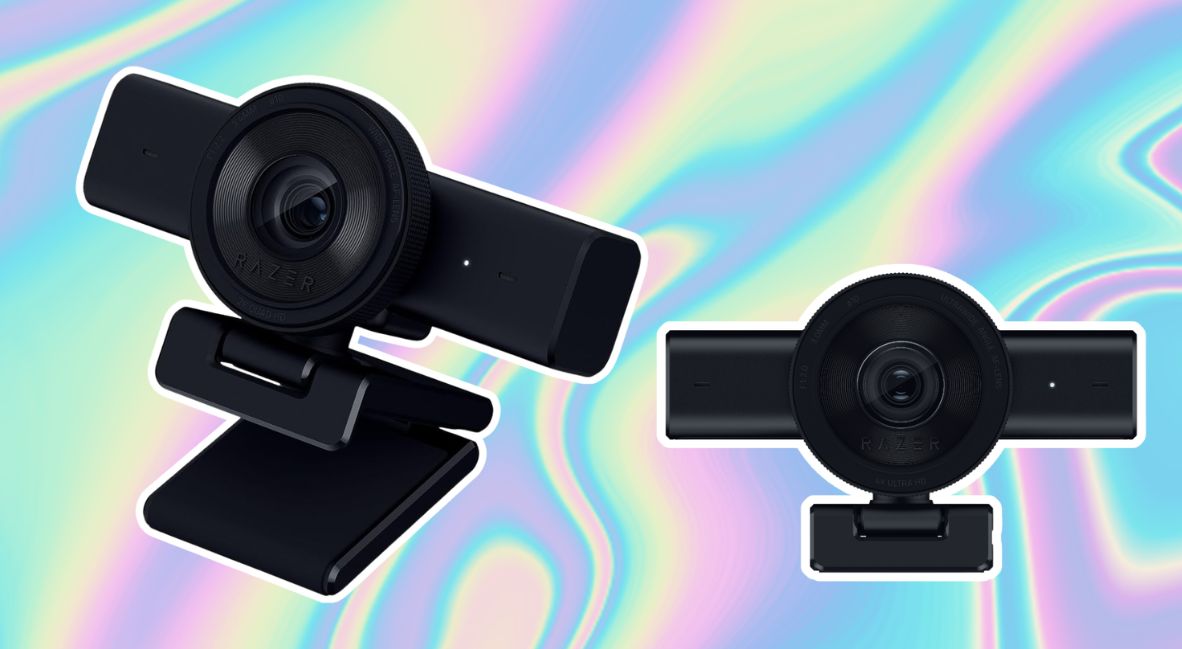
A lot of the success in my very specific use case for the Razer Kiyo V2 comes from the bells and whistles that come with the hardware itself. Which has ultimately come to be how I look at the camera, great hardware, but the software, well, it needs some help.
4K video and HDR adjustments really do all they claim to do.
At only $149.99, the Razer Kiyo V2 offers 4K video with a high-performance sensor that delivers crisp, professional content in 4K 30 FPS. Cheaper than a DSLR and easier to use, this is the best camera quality I’ve had. Not because my face while recording a video is perfect, but because the 4K specs make recording my Commander games and using Spelltable extremely easy.
Magic cards are 2.5 inches by 3.5 inches, and the text is about a 7.5pt to 9pt font size, depending on the text on the card. This is important because capturing that information in a clear enough way for Spelltable to recognize the card is important to not repeating yourself, as players can click on your card and read it for themselves. With both matte anti-glare sleeves and traditional sleeves without any anti-glare coating, the camera never skipped a beat.
One of the big reasons I appreciated the switch to the Razer Kiyo V2 was the inclusion of High Dynamic Range (HDR). When manually adjusted, it made my skin look warm and glowing (which, as a neutral-tone girlie, I appreciate), while also adding enough depth to distinguish the black of my hair and shirt against each other.
The deeper contrasts and color accuracy worked even better when playing full art cards, which are sometimes harder for Spelltable to identify. It’s easy to say that the Razer Kiyo V2 worked for glam and for Magic when manually adjusted.
The clarity and adjustment don’t just stop at adjusting the HDR, ISO, or exposure, all of which allow for the perfect customization, as well as adjusting tone, brightness, and contrast. The customization I was looking for was also greater control of the displayed area. The Razer Kiyo V2 is equipped with an ultra-wide lens with 93° FOV, a feature I didn’t know that I would be so appreciative of.
Who knew Spelltable worked better with an ultra-wide lens?
The ultra-wide lens is a substantial upgrade, allowing me to both zoom in and choose which area will be the focus of the image I present in my camera. This is ideal when using a program like Spelltable because you can restrict the section of your desk that you display and adjust on demand if your board state gets a little out of control, if you’re playing something like a token or landfall deck.
Additionally, the practical application is that I can use it to restrict what people see during my Zoom calls. The fully controllable display lets you show what you want and zoom in on specific points easily. However, making sure your camera is set up for each purpose, regardless of the app you use, well, that’s a bit trickier thanks to the clunkiness of Razer Synapse 4.
The new Quartz version offers variety for users
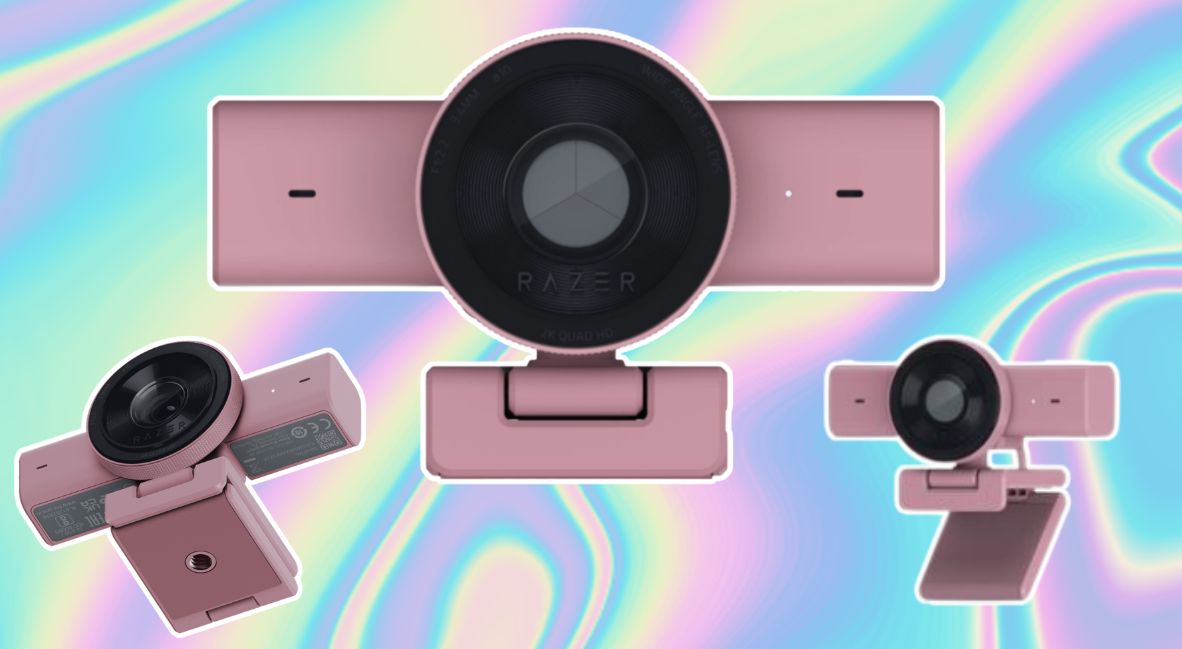
The new Kiyo V2 also now comes in a pastel pink, the signature pastel pink of the Razer Quartz products (there is also a white version for those who go for that clean girl aesthetic with their setup). While this is “small” in terms of functionality, it does continue to push Razer’s understanding of the depth of its consumer base. The choice to create a pink variation of an item not usually considered a part of a desk aesthetic, so much as a necessity, is an element that you can’t overlook.
This builds on the work that the company has done, not only collaborating with well-known gaming brands and more male-dominated esports areas, but also with companies like Sanrio, and most recently, its collaboration with South Korean girl group BLACKPINK. While the lines do use the same products, they change the aesthetics for the collaboration; they’re still exciting elements that take into consideration that gamers don’t just want black, blue, red, and green as color options. And that’s a good thing.
Some Improvements Needed
Where the Kiyo V2 fails is in its Razer Synapse connection, the need to update settings when switching apps, and the AI auto-framing features, which are provided by Camo Studios. And one small issue when it comes to the weighting.
Razer Synapse 4 taints the experience of using the Razer Kiyo V2
On the first of these problems, the move to Synapse has caused issues for some Razer products, which led me to put off upgrading the necessary app as long as possible. However, when using the Razer Kiyo V2, you have to have the most recent version of Synapse to access any and all settings.
After immediately updating my app, the Razer Kiyo V2 worked well. It popped up at the top, in the section that lets you switch between product profiles. But on my second use, I had to manually disconnect and reconnect my Razer Kiyo V2 to get the profile to pop up again and adjust the settings. Compared to the Elgato Camera Hub, Razer Synapse marred my experience with the camera. When it worked, all was fine. The problem is that it only worked immediately if I was going to the same program it had previously been set to.
However, if I played a Spelltable game the night before and then needed to record a podcast via Zencastr or jump into a Zoom call, it took about 5 to 10 minutes to get everything set up again. The conflict it seems was between the camera settings of the program (yes, even if you had just used it) and the settings of the Razer Kiyo V2. This caused a variety of issues, like constantly coming in zoomed in, or having my lighting change drastically, or the weirdest yet, being switched to greyscale.
Each time, adjusting in Synapse, even if it was a feature not controlling the impacted element, the settings would revert to normal. While the functionality of the Razer Kiyo V2 is the best camera I’ve owned, Synapse is a crucible to finesse your way through. Setting up profiles helped solve this issue more quickly, but even after using the camera for almost two months, the problem persists.
As expected, the Razer Kiyo V2’s one-click enhancement doesn’t work well with my skin tone.
Additionally, the one-click image enhancement works well when aiming down at my cards. It adapts extremely well to the glare of sleeves. But when I pull the camera up on my face, well, it’s a problem. Controlled by a toggle switch, the Razer Kiyo V2 automatically optimizes your video for the environment. The goal of this automation is to make it easy to achieve a “polished look” regardless of the time of day or the lighting in your room.
The one-click adjusts brightness with auto-exposure, balancing the lighting of your face against the background. Additionally, the automatic white balance attempts to maintain natural color tones, avoiding overly warm or cool hues even in mixed or low-light conditions. However, for brown skin, this proved difficult for the camera to handle, either overcorrecting and washing me out or failing to illuminate my face at all.
Sadly, my time using the automated functions for the Razer Kiyo V2 was a similar fate. Despite the claim to make adjustments “intelligently,” the camera optimized for 15 cards on a table better than for my face. In fact, when it came to clearer picture quality or making my image more vibrant, I was better served adjusting the cool and warm tone of my Elgato KeyLight to get exactly what I needed.
Because of this, using the autoframing AI from Camo was much the same issue, which ultimately led me to delete my connection to Camo, despite the camera coming with a lifetime account. This was also because the suite of settings, including background blur, also didn’t work well enough to warrant keeping the connection.
The Razer Kiyo V2 takes a bit of a balancing act.
On the smaller side of issues I experienced while using my Razer Kiyo V2 is balance. The camera itself carries a lot of its weight in the front, and the element that you use to attach to your computer through the grip doesn’t have enough backweight or an adhesive pad (as my former Elgato Neo did) to stabilize moving the camera around.
While I expected some issues when playing with the camera tilted all the way down to play Magic via Spelltable, it turned into a game of “don’t get excited and hit the desk,” because the camera would fall if any movement occurred. Which, as you can imagine, placing cards down is constantly keeping it on edge.
While this was an extreme situation, the same tipping issue occurred when the Razer Kiyo V2 was facing me head-on, with only a slight tilt to compensate for the monitor height. While the tipping occurred less frequently and required significantly more force, the front-heavy/top-heavy nature of the camera is an issue.
Now, I have mostly fixed the issue by attaching a command strip to the base of my monitor. Is that a great idea? Probably not for monitor health, but no one will see it, and I don’t plan on switching this camera out any time soon.
The Verdict: The Razor Kiyo V2 is the perfect camera for Spelltable; Synapse 4 is just bad.
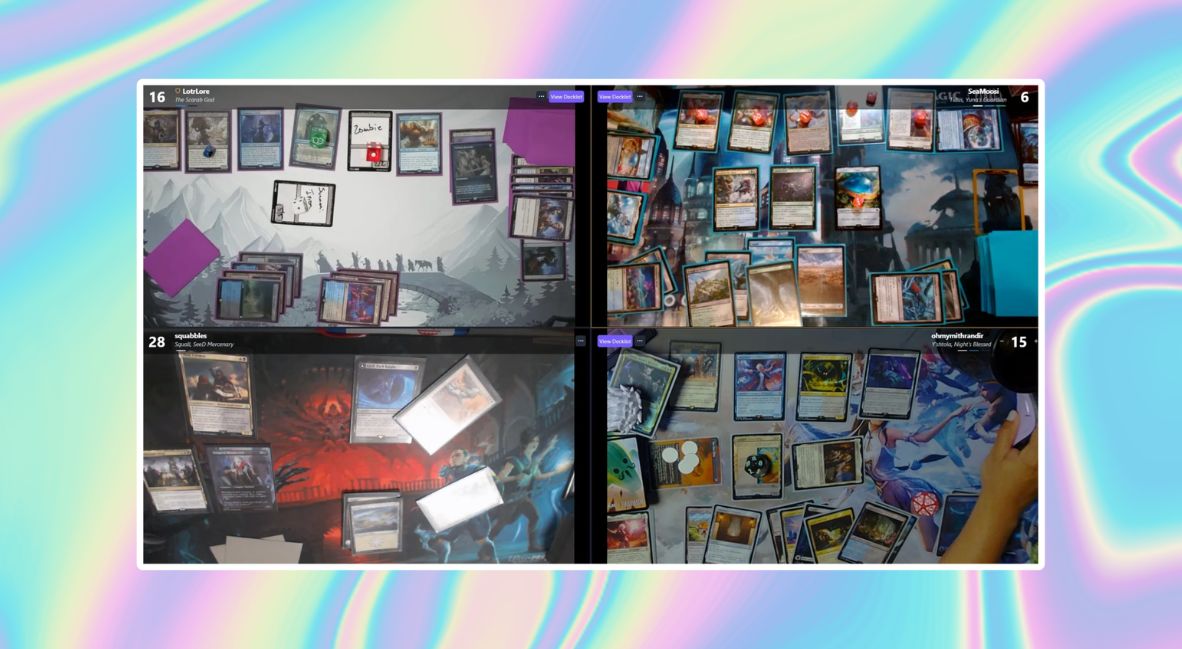
After turning off all of the AI features meant to enhance your image, the Razer Kiyo V2 is still an excellent camera. My image was crisp when it came to filming videos, and all of the Spelltable games I ran throughout my time never once had a problem reading my cards.
This is, however, one of the few times I think all of the bells and whistles added to the Razer Kiyo V2 don’t make it better, especially when my time with the camera was greatly improved when not utilizing all of its features. That said, as with many of my product reviews, I had a very specific problem to solve.
Play Spelltable with friends and be able to consistently and reliably see my Magic cards when playing. And, the Razer Kiyo V2 does just that, and better than the Elgato Neo, FaceCam, or the Logitech Brio and 4K Pro, which I also tested with Spelltable.
Rating the Razer Kiyo V2 is difficult. Realistically, the camera works better for me when manually controlling everything, which then leads to issues with Razer Synapse. However, once it’s all set up, I wouldn’t switch out the image clarity and depth it gives at 2.1 zoom and zero zoom for any of the other cameras I have at my disposal. If anything, it is Razer Synapse 4 itself that gets quality-of-life adjustments; the main annoyance may disappear, even if I can’t use the one-click image enhancement, which goes a long way for content creators.
Ultimately, though, with a price comparable to the Elgato FaceCam and Logitech 4K Pro and a performance that outshines for small features from a distance, this is the camera to pick up. The quality you get, especially when you’re in full control of the camera, is well worth the $149.99 USD investment. I’m just sad to report that the need for Razer Synapse 4 is holding it back.
The Razer Kiyo V2 is available now in Black, White, and Quartz.